| Part 1: Photo Express 2.0 SE Screen Layout Part 2: Acquiring an Image and Scanning in Photo Express 2.0 SE Part 3: Saving an Image in Photo Express 2.0 SE Part 4: Printing an Image in Photo Express 2.0 SE Part 5: Making a Calendar with Photo Express 2.0 SE
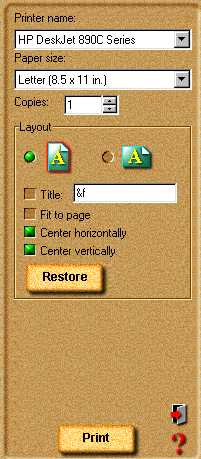
Part 4: Printing an Image in Photo Express 2.0 SE - Click the Print button on the Command panel.
 The print tools appear on the Toolbar. Select a print tool to use: The print tools appear on the Toolbar. Select a print tool to use: - Normal lets you print images normally on various different types of paper (from Letter and A4 to envelopes).
- Tile resamples the image down to tile it multiple times on the page, creating custom picture cards or postcards.
- Poster resamples the picture up allowing you to print portions of it on separate pieces of paper, effectively creating posters and banners.
- After making your selection, click Print.
|  | |