iPhoto Plus Tutorial Selecting The Twain Source Acquiring The Scanner Setting Monitor Gamma
Selecting The Twain DataSource (Driver) 1. Start iPhoto Plus. 2. Open the File Menu and click Selct Source. 3. The Source dialog box shows which Twain Data Source is currentlyselected. To change it, highlight Mustek F/B Scanner (EPP-II) which isthe Twain Data Source for the 600 III EP. Once it is highlighted,click Select. Acquiring The Scanner 1. Start iPhoto Plus. 2. Open the File Menu and click on the Acquire command. 3. The Twain driver appears. 4. Set your Scan Mode and Resolution, then click Prescan. 5. Set your Crop Frame, then click Scan. 6. When scanning is complete, click the Close button to return to iPhotoPlus. Setting Monitor Gamma 1. After scanning a picture, you may need to adjust the Monitor GammaSetting (This can only be done when an image is open). 2. Open the file C:mscanmsofficeipplusipgamma.tif which is shownbelow. (Use the Find option on your Windows 95 Start Menu to locate thefile.) 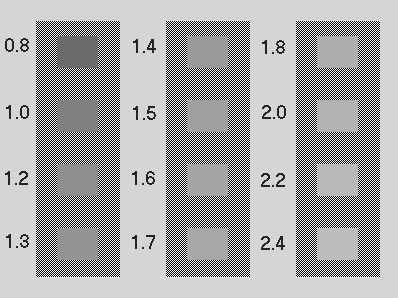
3. Choose the grey square which most closely resembles the backgroundand make note of the numbers printed next to that square. 4. Open the File Menu and click Preferences. 5. Type the corrected Gamma setting noted above into the Monitor Gammadialog box then click OK. 6. The Monitor Gamma will now be adjusted and your scanned image willappear lighter or darker accordingly. |