 | Document # 6510 |
        |
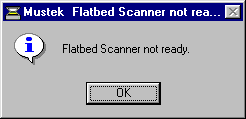
Flatbed Scanner Not Ready Error MessageThis document tells how to troubleshoot the following error message:
The error message appears when you try to scan either with the MustekScanning Desktop for Windows 95 or from iPhoto Plus, Picture Publisheror Text Bridge. There are several possible causes for this message: Cause #1. You do not have the proper driver installed for yourmodel scanner. Look at the front of your scanner. If the nameplate DOES NOT say600 II EP, you inadvertently installed the driver for the 600 II EP.The only Twain driver that ever produces the above error message is the600 II EP Twain driver. If you get this error, you have the 600 II EPdriver installed and selected. If you actually do have the 600 II EP scanner,one of the causes listed below is producing the error message. |
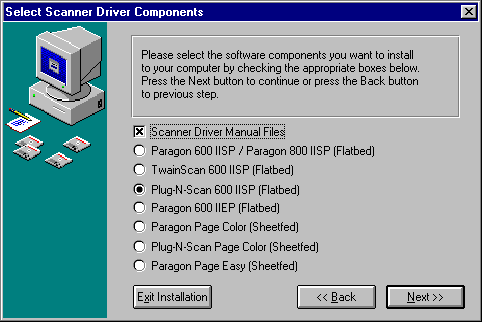
| Solution #1. Re-install the Scanner Solutions CD and choosethe correct scanner model number. It is NOT necessary to Un-install MustekScanner Solutions before re-installing. During installation, you will see a screen that looks like the one below:
On Scanner Solutions Version 1.1, the above screen will have the Plug-N-Scan600 IISP checked by default, which is the same as the 600 II EP (The600 II EP says Plug-N-Scan 600 II SP on the box it comes in). The Scanner Solution CD ships with every scanner Mustek currently makes.One of the scanners is always checked by default. If you don’t have theone that is checked, you must check the correct one. If your scanner says any of the following on it’s front plate: MFC-600S, 600 II SP, 600 II CD or 800 II SP check the Paragon 600 IISP / Paragon 800 IISP choice when re-installingScanner Solutions. After re-installing Scanner Solutions, it is necessary to select theproper Twain Data Source in iPhoto Plus. Start iPhoto Plus and choose SelectSource from the File Menu, then select the proper Twain Data Source foryour scanner. If you have a Parallel port scanner, choose the Twain sourcethat says Plug-N-Scan Page color or Mustek F/B Scanner (EPP). If your scannercame with a SCSI card, choose the source that says Mustek F/B Scanner. Cause #2. You have a poor cable connection or you are not usingthe correct cable. Solution #2. Check to insure the cables are properly connectedand that you are using the correct cable. The cable that came with the scanner will have the # 20276 printed directlyon the side of the cable. If you have a Parallel Port scanner, the cable that comes with the unitshould run from the parallel port on your computer, to the port markedHOST on the scanner. Make sure the cable is tight on both ends. Cause #3. Your parallel port is not set to EPP mode in yourcomputer’s BIOS. Solution #3. Check your BIOS (Also called CMOS or Setup) to seeif the Parallel Port mode is set to EPP or ECP or ECP/EPP. During bootup, you should see a message on the screen telling you whichkeys to press to enter Setup. Press the designated keys to get into theBIOS Setup Utility. Here are likely key combinations: F1, F2, Del, Ctrl+Alt+Esc or Ctl+Alt+S If you are unable to get into the BIOS, call your computer manufacturerfor assistance. Once in the BIOS, look for the settings for Parallel Ports, LPTs orPeripheral Configuration. There may be as many as four different choices for parallel port mode.Older computers (2 years or older) will not have any choices at all. Youshould try EPP or ECP first. If that doesn’t work, try the other choicesbecause the scanner should work in various modes. The EPP or ECP mode willusually give better performance than the other modes, so they should betried first. Cause #4. You may be having power problems. Solution #4. Check to make sure the scanner is turned on andmake sure the green LED on front of the scanner is steady. If the LED isblinking, turn the scanner off and back on. If this doesn’t solve the problem,turn off both the scanner and computer, then restart them both. If none of the above solutions solve your problem, call our TechnicalSupport Department. |
| Mustek and the Mustek logo are trademarks and registered trademarksof Mustek, Incorporated. Any use without the express written permissionof Mustek is forbidden. Other company and product names may be trademarksor registered trademarks. |