Save scanning time by considering the image’s purpose before scanning
Save scanning time by thinking about the image’s destination before you scan. For instance, if the image will end up on a Web site, you need to scan it at only 72 dpi, and 200 dpi is sufficient for a newsletter image.  Don’t let thin paper mar your results. Place a black sheet of paper between the page and the flatbed scanner lid to prevent text printed on the opposite side of the document you are scanning from showing through. 
Simple Search results depend on the accuracy of the OCR engine-so scan your documents at 300 dpi instead of 200 dpi. Clean documents will always be more accurately recognized than those with a lot of noise (stray marks, blurriness, etc.).
If your document has background shading, or noise, use the SharpPage option for scanning, or the Clean Page option from the Page menu within PageView. Also, you can only OCR documents that are scanned in 1-bit mode (black and while) to create the SimpleSearch index. Any documents scanned in color or grayscale will not have a text index and cannot be searched (or found) with SimpleSearch. 
Your scanner’s brightness control impacts the quality of your scan. To find out if yours is set properly, zoom in to examine the page. Broken characters indicate that scanner brightness is too light. Blurred characters indicate that scanner brightness is too dark. 6. 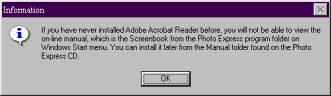
On the "Information" screen, click "Next"
7. On the "Setup Complete" screen, click "Finish". 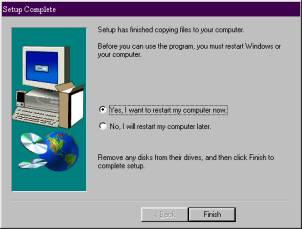
--------------------------------------------------------------------------
|